WordPress: Page Editor Upgrade

There are several editor options that you can integrate into WordPress to make designing your sites pages easy, My favourite has to be Page Builder by SiteOrigin. This plugin makes it easy to build responsive grid-based page content that adapts to mobile devices which means your page content is always displayed accurately.

It has a simple drag and drop interface and is backed up by a collection of widgets which means you shouldn’t have to modify any code.  Page Builder also uses WordPress’s built in widgets and with access to some impressive plugins. This has to be one of the easiest WordPress editors available.

Check out the web site here

WordPress: Clone Posts & Pages

Sometimes you can spend ages setting a page up and you realise you would like to create a new post, but keep all the work you have done in formatting a page in place. This plugin allows users to clone posts of any type, or copy them to new drafts for further editing.

It is extremely versatile:

In ‘Edit Posts’/’Edit Pages’, you can click on ‘Clone’ link below the post/page title: this will immediately create a copy and return to the list.

In ‘Edit Posts’/’Edit Pages’, you can select one or more items, then choose ‘Clone’ in the ‘Bulk Actions’ dropdown to copy them all at once.

In ‘Edit Posts’/’Edit Pages’, you can click on ‘New Draft’ link below the post/page title.

On the post edit screen, you can click on ‘Copy to a new draft’ above “Cancel”/”Move to trash” or in the admin bar.

While viewing a post as a logged in user, you can click on ‘Copy to a new draft’ in the admin bar.

You can check out the plugin here

Google reCAPTCHA

Adding reCAPTCHA to a WordPress site is fairly straightforward these days, however you may wish to add a spam prevention measure to a standard html form.

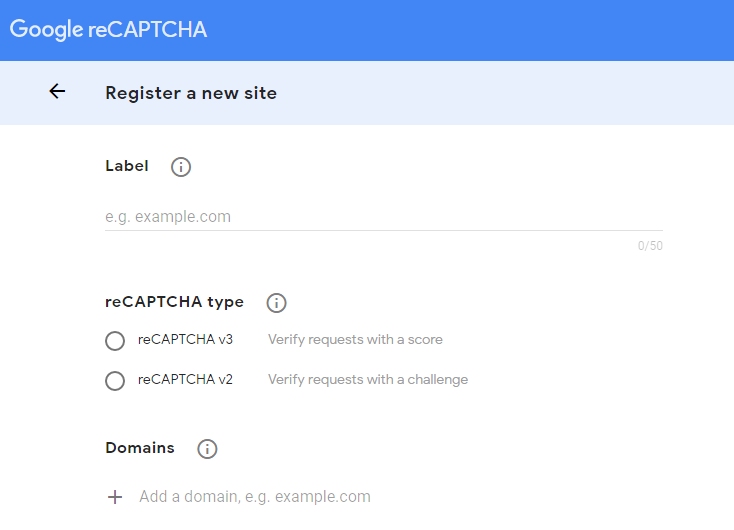
To use reCAPTCHA, you need a Google account. Sign into the reCAPTCHA admin console:

https://www.google.com/recaptcha

Register the web address your form is on.

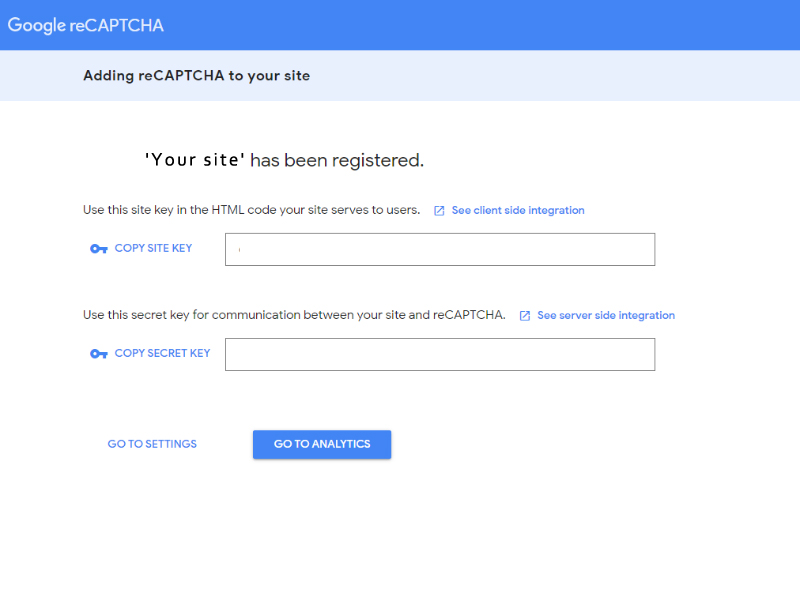
This will provide you with a ‘site’ key and a ‘secret’ key.

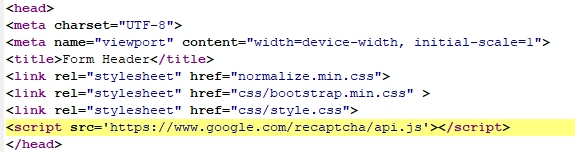
Go to your web site mail form and add the code in the following places:

Form header

Prior to the submit button

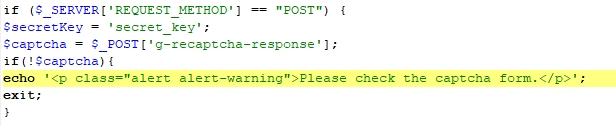
On the mail processing form add the following code:

Note the positions where the site key and secret key need to go.

That’s it!

Post Type Switcher

This plugin adds a simple post-type drop-down to the post editor interface, allowing you to reassign any post to a new post type. It allows you to switch post’s type while editing your post.

SUPPORTED TYPES

The plugin can convert nearly every combination of posts, pages, and even custom post types:

  • Page to Post
  • Post to Page
  • Post to Custom
  • Custom to Custom

BULK EDITING

With bulk editing  you can select all the posts in a certain type and convert them to a new type with one quick action.

BLOCK EDITOR

With block-editor (aka Gutenberg) support you can switch between post-types that use either the Block Editor and the Classic one, without losing any of your embedded content.

WordPress Admin Menu Editor

Customize the Admin Bar (WordPress Toolbar) Hide toolbar items, change their order with drag & drop, rename items, add new links, and more….

If you use a variety of plugins to manage your web site sometimes the location on the menu bar is not quite as convenient as it could be. You can make using WordPress easier to use by moving frequently used menu items to the top. You can also move menu items from one submenu to another, or to the main menu.

You can add your own links to the admin menu, make a custom menu’s  and it’s possible to create non-clickable items, which can be useful for things like section headers in complex admin menus. So, if you want a top-level link to “Add New Post” or to a specific plugin? You can do that. If you have an unruly plugin that puts its admin page in the wrong place? Move it to “Settings” instead.

This is probably one of the most useful plugin’s available and one of the best things about it is, you can simplify the menu system for your clients. If you can make things simple, then things work!

User Role Editor

User Role Editor WordPress plugin by Vladimir Garagulya allows you to change user roles and capabilities easy.

Just turn on check boxes of capabilities you wish to add to the selected role and click “Update” button to save your changes. It’s as simple as that.

Add new roles and customise its capabilities according to your needs, from scratch or as a copy of other existing roles.
An unnecessary self-made role can be deleted if there are no users whom such role is assigned and the default role assigned to every newly created user can also been changed.

Capabilities could be assigned on per user basis. Multiple roles could be assigned to a user simultaneously and Multi-site support is provided.

Check out the plugin site here.

Get A Personal Email Address

This day and age nothing can be done without having an email account. There are a lot of email providers out there and generally you can pick up an outlook, gmail or yahoo address fairly easily. Many people use the address that their ISP (Internet Service Provider) gives them, however what you find is with so many people now using the Internet, many of the more easy to remember addresses are now gone.

You may assume buying a domain name so you have your own web address is just for business. Not at all. I have been using an @avmail.net address as my personal address for years. It is short, sharp and very easy to remember. Therefore, if you want an email address that really reflects your identity, then take the plunge and have your own domain name too.

That way the bit after the ‘@’ sign is personalised, as well as the bit before it and because you own the domain itself, you can put whatever you want at the start of the address. Typical combinations that could be used are:

firstname@surname.co.uk (you can give each family member their own address)

name@housename.co.uk

email@firstnamesurname.co.uk

yourname@youroccupation.co.uk (a good idea if you run a business from home or are thinking of setting one up)

So, if you hadn’t thought about getting your own web address and you like the idea of a personal email address, Prices start at £4 + VAT  per month including set up for email hosting only. Otherwise if you want to include some web space with that and create your own web site or blog, it’s £6 + VAT per month. Prices are applicable for uk domains only. Other domain extensions are available however prices vary and will be provided on request.

Business packages also available. Contact us for more information.

FM 20 Fake Name Fix

Due to licensing issues, FM 20 contains fake names for a number of competitions, clubs and awards. To fix this you can download and install an add-on from FM Scout  You can then  play FM 20 with real names.

The download contains:

  • All playable clubs names from all continents
  • All major leagues names
  • All non-playable Europe Top Leagues club names
  • Almost all minor leagues names
  • All Continental, National and National Cups names
  • Continental awards
  • Some stadium names

Once downloaded, follow the instruction on the FMScout site

For reference, the folder structure of the path you need to apply the fix to is as follows:

[fac_icon icon=”folder”] 2010

[fac_icon icon=”folder”] 2010_fm

[fac_icon icon=”folder”] dbc

[fac_icon icon=”file-o”] 2010 zebra award.dbc

[fac_icon icon=”file-o”]  zebra turin fake staff.dbc

[fac_icon icon=”folder”]  permanent

[fac_icon icon=”file-o”]  brazil_kits.dbc

[fac_icon icon=”file-o”]  forbidden names.dbc

[fac_icon icon=”file-o”]  Licensing2.dbc

[fac_icon icon=”file-o”]  Licensing2_chn.dbc

[fac_icon icon=”folder”]  temp league fixes

[fac_icon icon=”folder”]  edt

[fac_icon icon=”folder”]  permanent

[fac_icon icon=”file-o”]  fake.edt

[fac_icon icon=”folder”]  lnc

[fac_icon icon=”folder”]  all

[fac_icon icon=”file-o”]  fake.lnc

[fac_icon icon=”file-o”]  lic_dan_swe_fra.lnc

[fac_icon icon=”file-o”]  nleague.lnc

The path to the directory is as follows:

Windows:

\Program Files (x86)\Steam\steamapps\common\Football Manager 2020\data\database\db\2010\

Mac:

/Users/[username]/Library/Application Support/Steam/steamapps/common/Football Manager 2020/database/data/db/2010/

A copy of the instructions follows:

  1. Quit the game (if it’s open).
  2. Extract the contents of the pack you downloaded  to a temporary location. You’ll need them for step 6.
  3. Find the 2010 folder.
  4. Open the lnc folder and then enter the all sub-folder.
  5. Delete all files you can find in there, particularly the following 3 files:
  • fake.lnc
  • lic_dan_swe_fra.lnc
  • nleague.lnc
  1. Move FM20 Fix by FMScout.lnc and FM20 Club Names by FMScout.lnc inside the all folder.
  2. Go 2 folders back to find the edt folder. Open it and then enter the permanent sub-folder.
  3. Delete the file “fake.edt”.

This will fix Niko Kovač from getting renamed to Max Freund, and Oliver Kahn from getting renamed to Jens Freund.

  1. Again go 2 folders back, this time to find the dbc folder. Delete the following 3 files:
  • zebra award.dbc
  • zebra turin fake staff.dbc
  • zebra turin new.dbc

This will fix Juventus from getting renamed to Zebre and prevent fake staff for them.

  1. Now enter the permanent sub-folder Delete the following 4 files:
  • brazil_kits.dbc
  • forbidden names.dbc
  • Licensing2.dbc
  • Licensing2_chn.dbc

This will prevent Brazilian clubs from reverting to 3-letter names and will allow certain kits to be visible again.

  1. Open the game and enjoy Football Manager 2020 with real names.

PLEASE NOTE:

The fix for Juventus and Brazilian clubs can only take effect with a new save because dbc files affect the saved game when it’s first created.

If your saved game was started before the 20.1.0 patch, you need to apply this fix to the 2001 folder as well!

Don’t agree with a name? You can change it.

Open the fix file in a text editor such as Notepad, search for the name you want to change, change it, and save. It’s really that simple. The fix will apply the next time you start FM20.
NextGEN Gallery

Creating and Managing a Gallery

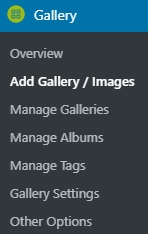
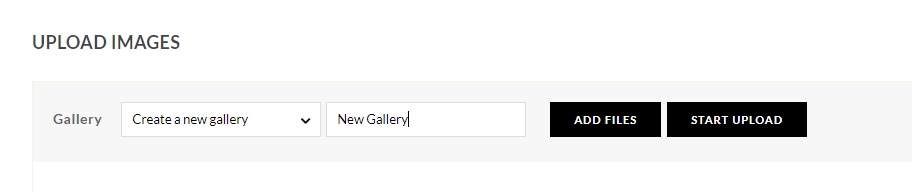
Log into WordPress and click on add / gallery images

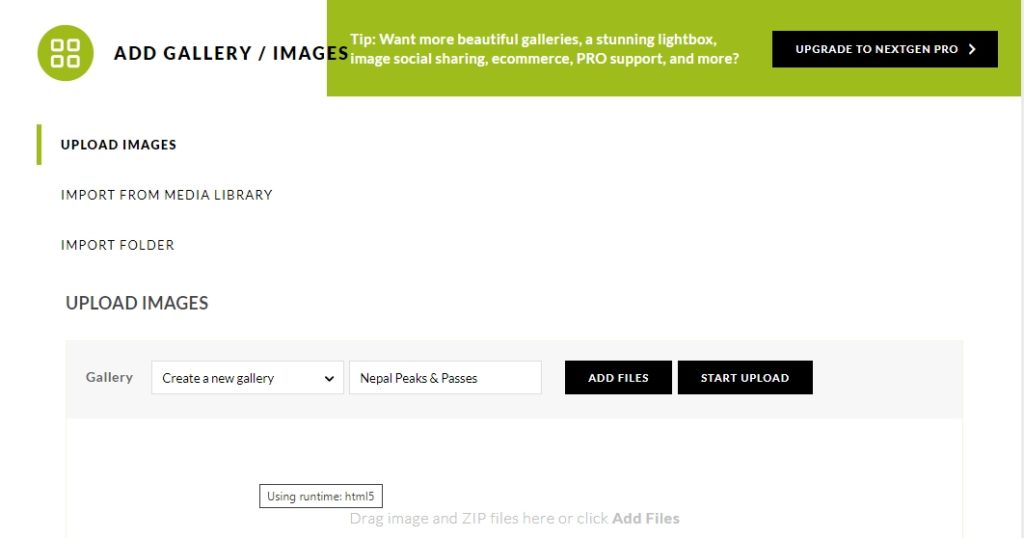
This page opens

Type in the New Gallery name: ‘New Gallery’

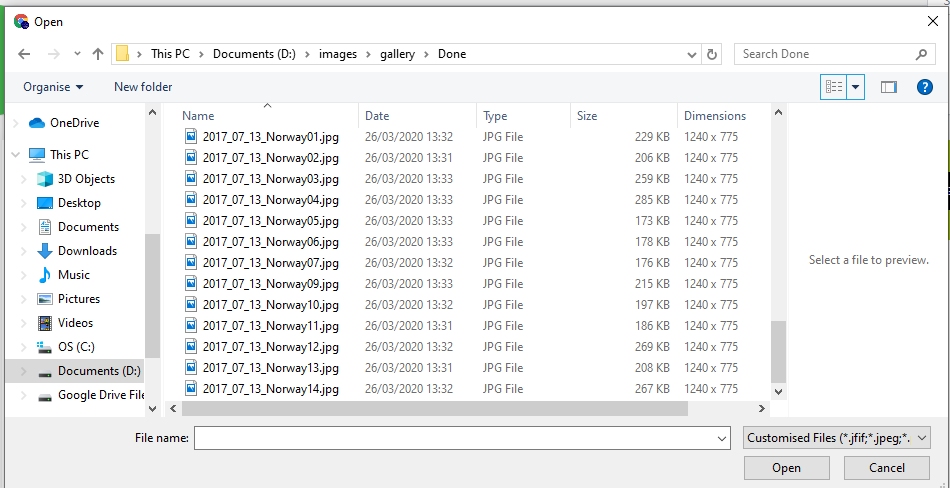
And click ADD FILES

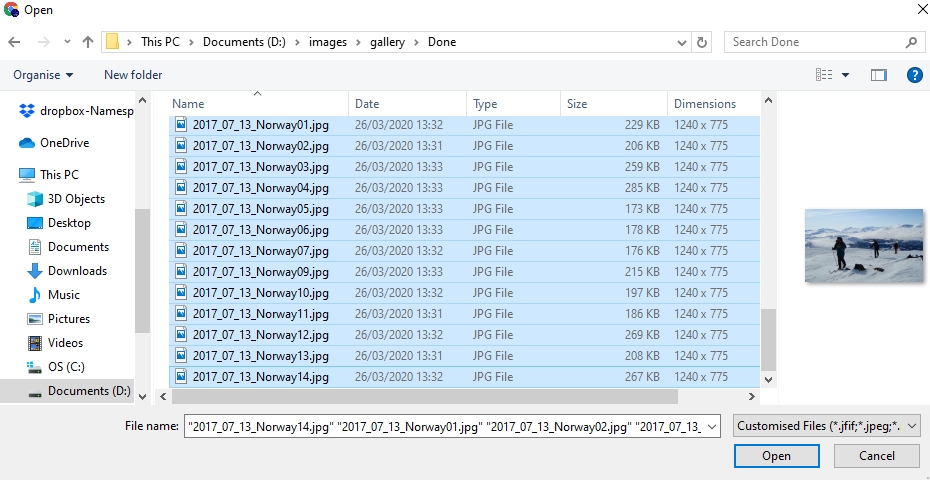
Multiple files can be selected by using CTRL and left click

Note files are numbered starting 01, the display order is based on file name.

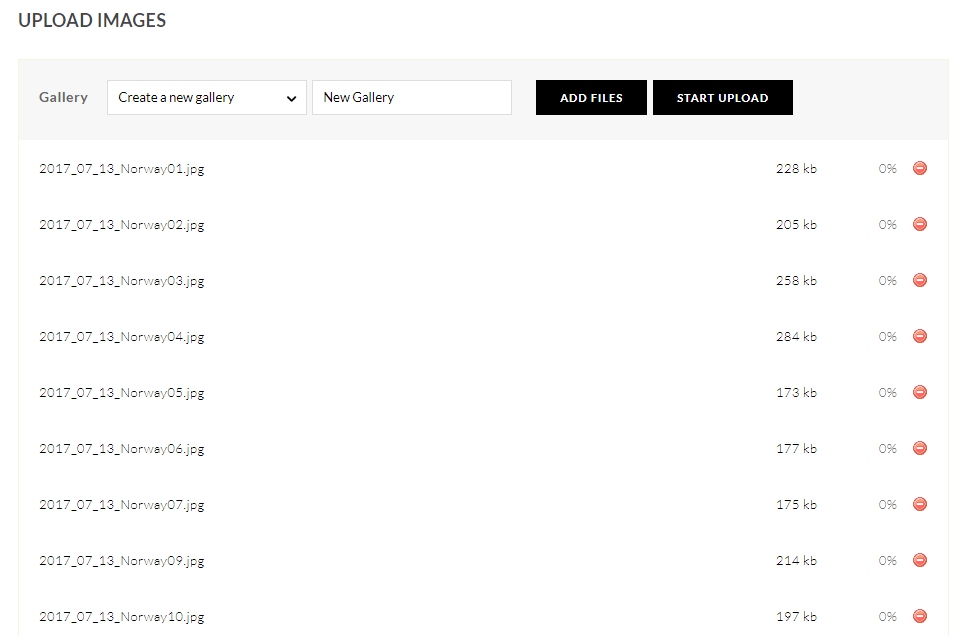
Select ‘Open‘

Select START UPLOAD

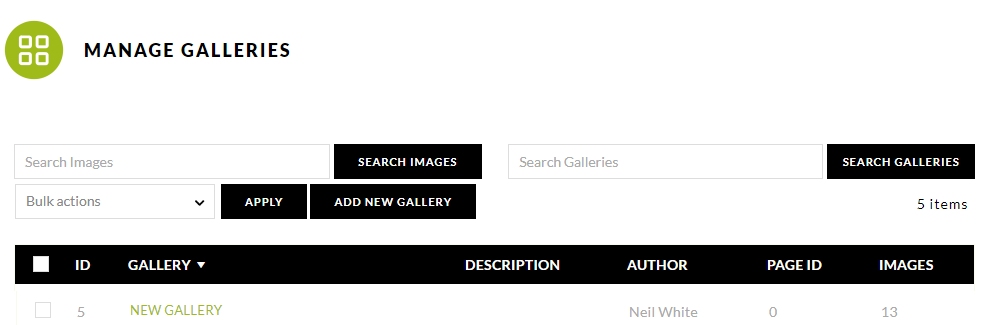
The files upload and you are redirected to the MANAGE GALLERIES Page

Now go to ‘pages’.

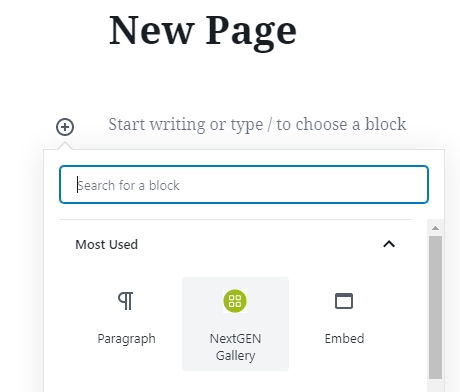
Create a New Page title that page and add a New Block

Select NextGen Gallery

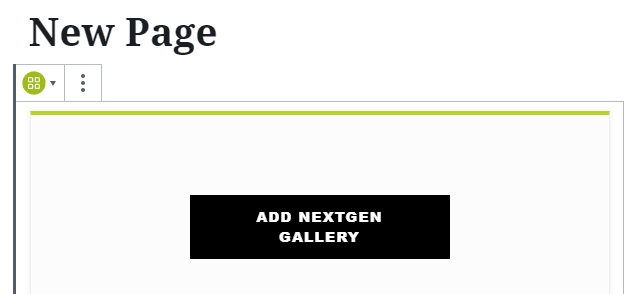
Select ADD NEXTGEN GALLERY

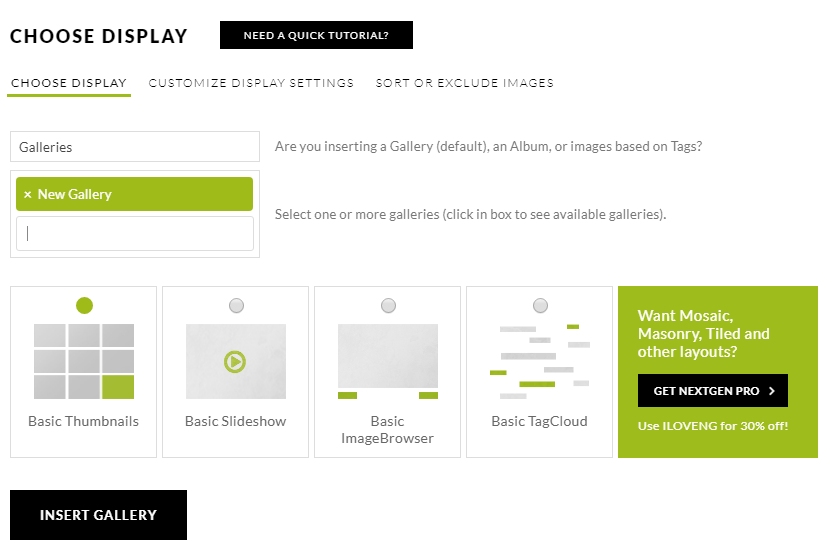
INSERT GALLERY – Publish the page and the job is done.

NOTE: Depending on theme, if you want a link to be displayed on your front page, you may need to:

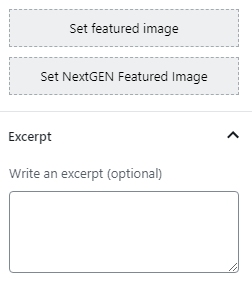
N.B. Set featured image requires a separate upload to Media Library / Set NextGEN Featured image allows you to choose one of your uploaded images.

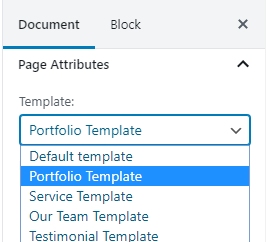
Set a featured image and write an excerpt and choose a Template.