Creating and Managing a Gallery
Log into WordPress and click on add / gallery images
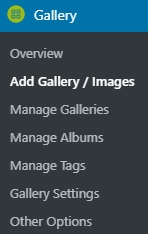
This page opens
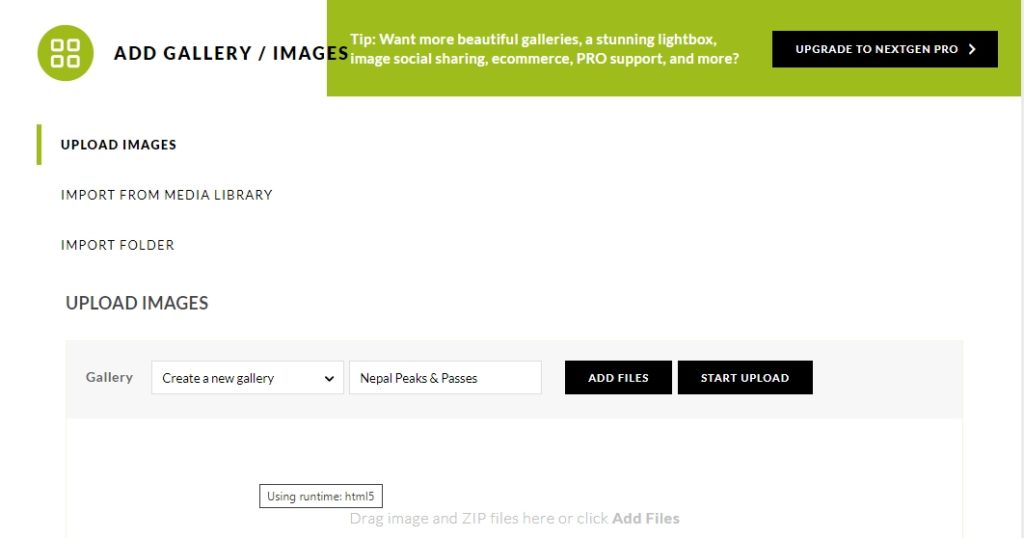
Type in the New Gallery name: ‘New Gallery’
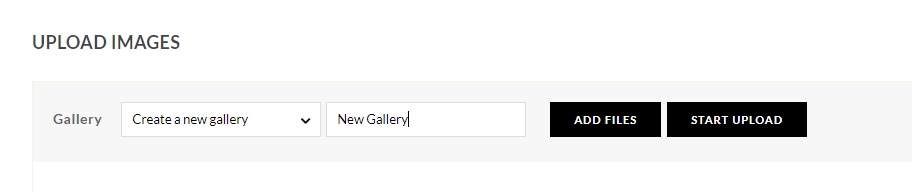
And click ADD FILES
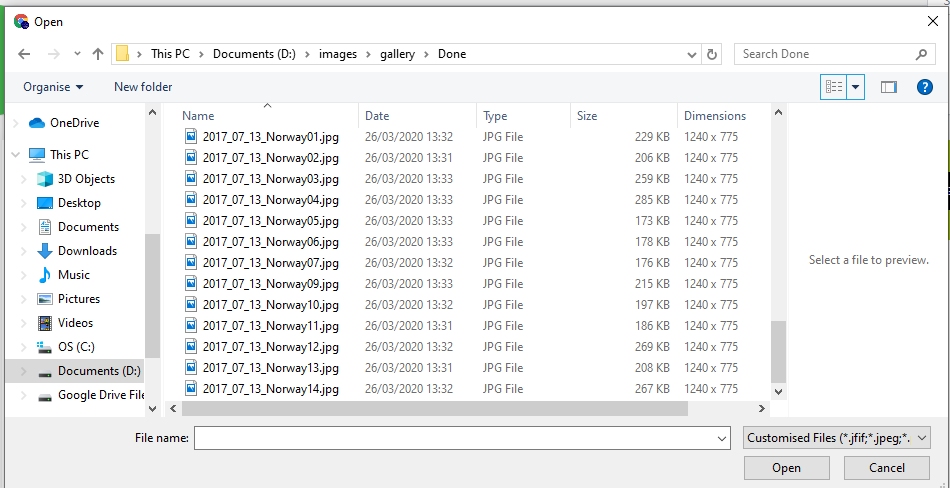
Multiple files can be selected by using CTRL and left click
Note files are numbered starting 01, the display order is based on file name.
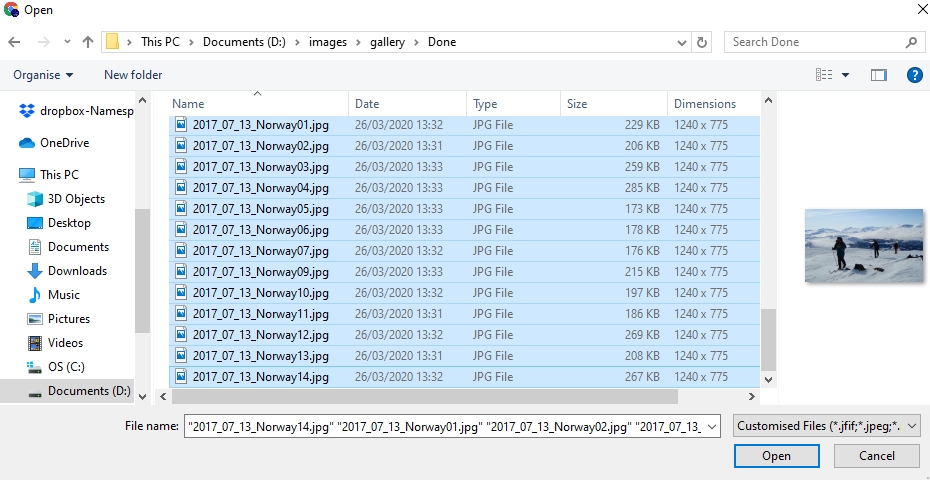
Select ‘Open‘
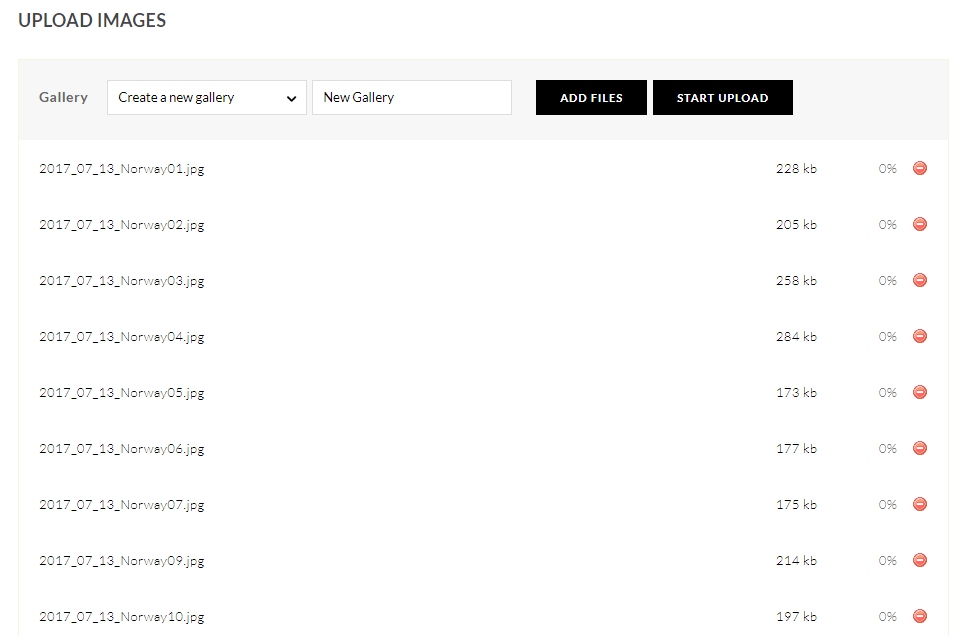
Select START UPLOAD
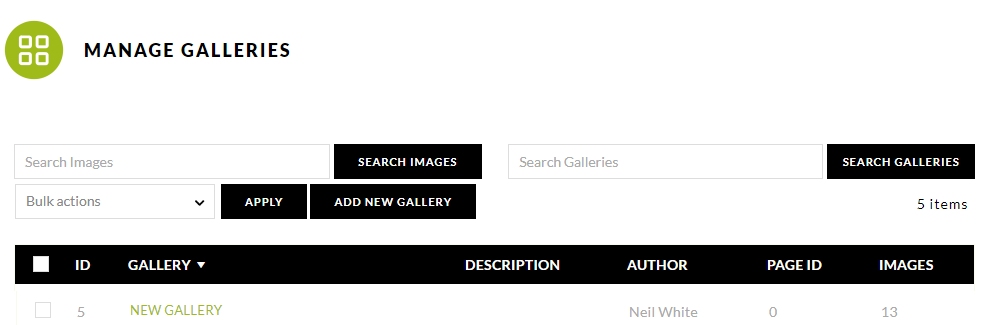
The files upload and you are redirected to the MANAGE GALLERIES Page
Now go to ‘pages’.
Create a New Page title that page and add a New Block
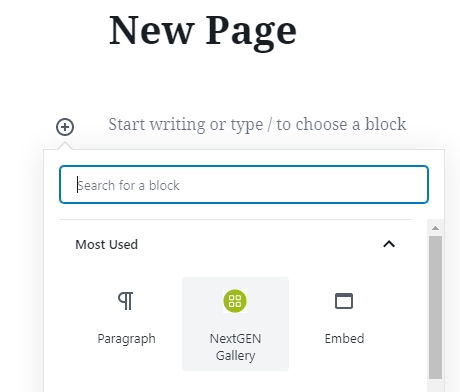
Select NextGen Gallery
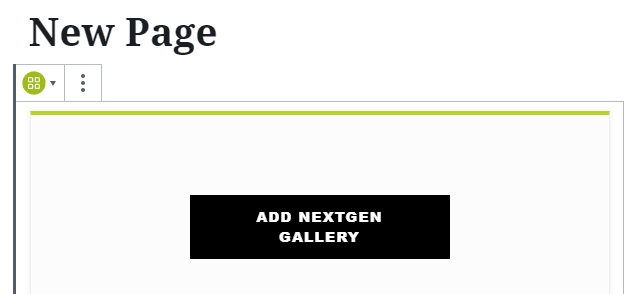
Select ADD NEXTGEN GALLERY
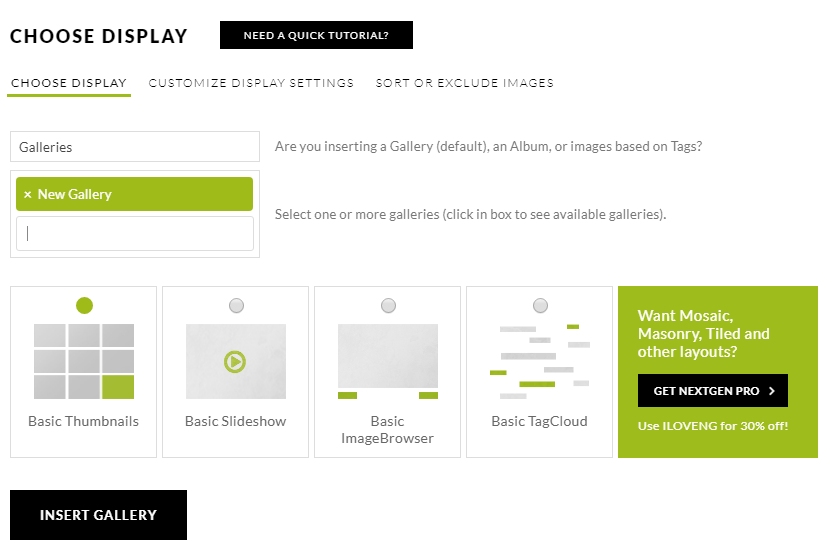
INSERT GALLERY – Publish the page and the job is done.
NOTE: Depending on theme, if you want a link to be displayed on your front page, you may need to:
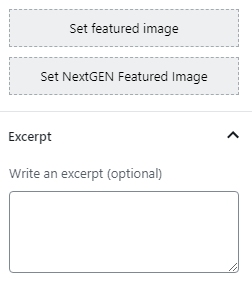
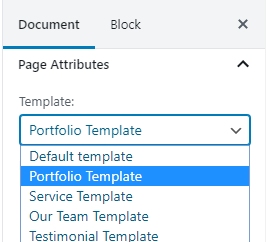
Set a featured image and write an excerpt and choose a Template.