Google reCAPTCHA

Adding reCAPTCHA to a WordPress site is fairly straightforward these days, however you may wish to add a spam prevention measure to a standard html form.

To use reCAPTCHA, you need a Google account. Sign into the reCAPTCHA admin console:

https://www.google.com/recaptcha

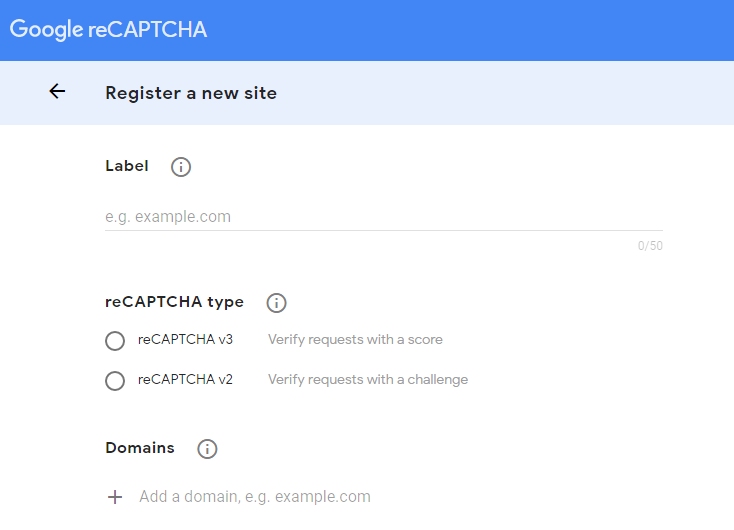
Register the web address your form is on.

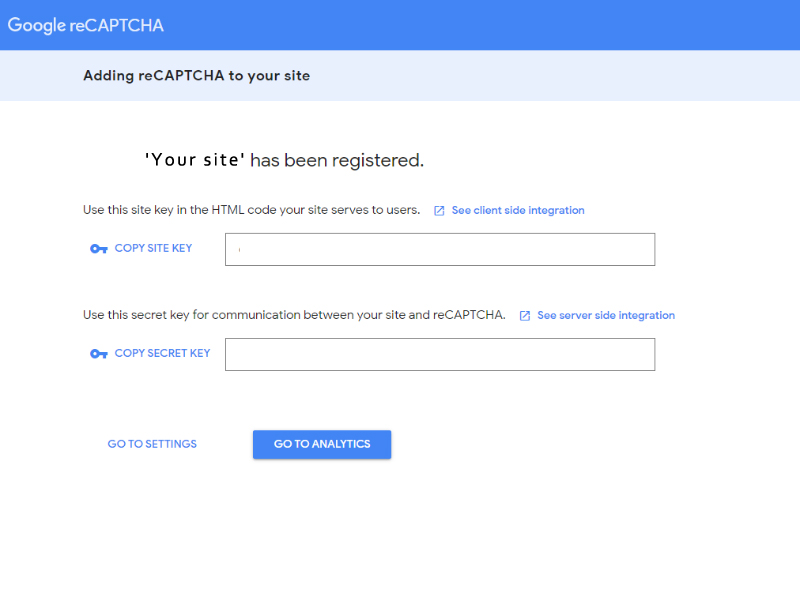
This will provide you with a ‘site’ key and a ‘secret’ key.

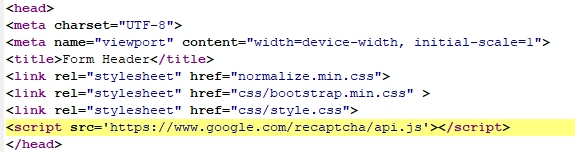
Go to your web site mail form and add the code in the following places:

Form header

Prior to the submit button

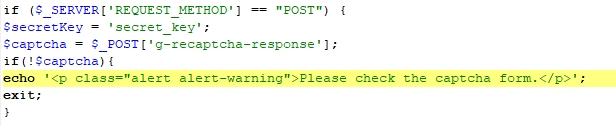
On the mail processing form add the following code:

Note the positions where the site key and secret key need to go.

That’s it!

GDPR (General Data Protection Regulation)

What is GDPR?

The GDPR is an EU regulation governing the processing of personal data by companies and public authorities. The regulation has been in force since May 25, 2016 and must be implemented by May 25, 2018. If companies fail to comply, fines of up to 20 billion euros or 4% of the world‘s annual turnover are threatened. GDPR affects all companies that process personal data. This includes, for example, names, customer data, telephone numbers, e-mail addresses or other data with which people can be identified.

Data Privacy & Security

Using third party storage such as Dropbox, OneDrive or Google Drive means that  data is store off-premises on undetermined servers. That potentially exposes that data to a variety of unknown users and once data is on third-party servers, it can often stays there – deleting it from a user account does not delete it from the storage.

Something to think about

In 2012 Dropbox had a major data breach, containing encrypted passwords and details of over 68 million  users’ email addresses and passwords leaking on to the internet – around two-thirds of the firm’s customers. Article here

Solution – Store your data on a business grade secure UK based server with Triton Technical Solutions.

Where does Triton store your data?

Triton’s service provider is UKFast who has invested £22m in Manchester based  IL4 data centres to ensure the highest level of service available. With UKFast, your data will always be stored securely within the UK. And with 100% power availability and built-in redundancy for all critical components, you can be assured your mission critical applications will always be online.

UKFast is certified to ISO 27001 (Information Security Management) which verifies the robust security practices employed within their data centres and operations. The ISO 27001 standard provides peace of mind that UKFast maintains total integrity of your hosting solutions along with complete confidentiality and guaranteed network availability.

UKFast is also PCI DSS compliant (Payment Card Industry Data Security Standard) in our operational business processes. This means that all UKFast clients can be confident that payment card transactions processed by UKFast meet PCI requirements, protecting you from risk.

Can your current host or business data storage provider give this guarantee?

Why use Triton Technical Solutions?

EU-GDPR compliant

Because with Triton’s Private Cloud solution you know exactly where your data is stored and who has access to it.  It is important to know where your sensitive information is being stored and how it is being accessed. You can meet regulatory compliance with data storage on Triton Servers in our Manchester data center. With Public Cloud-based products the data may even be stored outside of the UK, which may put you at risk regarding regulatory requirements, data leakage, security vulnerabilities, compliance violations and lead to potential business damage.

Sync and Share Your Data, with Ease

The software we use is ownCloud, the most straightforward way to file sync and share data. You don’t need to worry about where or how to access your files. With ownCloud all your data is where ever you are; accessible on all devices, any time.

A Safe Home for All Your Data

ownCloud is hosted exclusively within your Triton hosting account so you can rest assured that your data is under your control. ownCloud is all about your privacy and works to protect your files. It ensures that access is controlled only by the one who should have control.

Encryption & Security

ownCloud is all about securing your data. Encrypt your data and make sure that no one, other than yourself, has access. With credential or master key based encryption, ownCloud adds an additional layer of security to your files.

End-to-end Encryption

The new end-to-end encryption, or E2EE, plugin completely encrypts your data and neither an administrator nor third parties who have access to the infrastructure can read the data. The new E2EE plugin is the safest and easiest way to send encrypted files between two or more people.

How much does a Triton Solution Cost?

We would host ownCloud on a dedicated domain or subdomain, for example https://storage.tritonts.com which would be secured by an SSL certificate.

If using a subdomain of your own web site, there is no ‘address fee’, and hosting is charged at our annual rate of £75 + VAT.

ownCloud installation and set up is a £150 + VAT one of set up fee and utilises the 5GB of storage within your hosting package.

Please note, For each additional 1GB of storage required, the cost is £1.00 + VAT per month.

Contact Us

If you are interested in finding out more….contact Triton: 01823 322 595 or Email admin@tritonts.com with GDPR in the subject field.
Is Your Web Site Secure

I don’t know if you have noticed, but browsers have now started marking sites without HTTPS as non-secure. The aim is to improve security for sites that collect sensitive information, however all sites – even basic brochure sites, are being pushed down this route as HTTPS pages will be given priority in Google searches.

In simple terms, HTTP (HyperText Transfer Protocol) and HTTPS (HyperText Transfer Protocol Secure) are both protocols, or languages, for passing information between web servers and clients. HTTPS is a secure connection, whereas HTTP is unsecure. With a standard HTTP connection, it is possible for unauthorized parties to observe the conversation between your computing device and the site.

This is only really relevant if you are entering sensitive information such as a password, credit card or bank information on a website. An HTTPS connection adds a blanket of security over that conversation using an SSL/TSL protocol (Secure Sockets Layer and Transport Layer Security). This connection encrypts data to prevent eavesdropping, protects its integrity, prevents corruption in transfer, and provides authentication to ensure communication only with the intended website.

Basically, HTTP is not secure, and you should never trust your sensitive information to such a site. HTTPS is secure and is becoming the web standard. What this also now means is webmasters need to ensure security certificates are implemented properly to retain their sites search position as non-secure sites will start to drop down the rankings. Users expect a secure and private online experience when using a website, so in penalizing HTTP connections, Google is taking steps to ensure they get it.

Currently, Chrome indicates HTTP-only connections with a “neutral indicator,” marked by an information symbol. Click it, and you’ll see a warning that “your connection to this site is not secure” and “you should not enter any sensitive information on this site (for example, passwords and credit cards) because it could be stolen by hackers.”

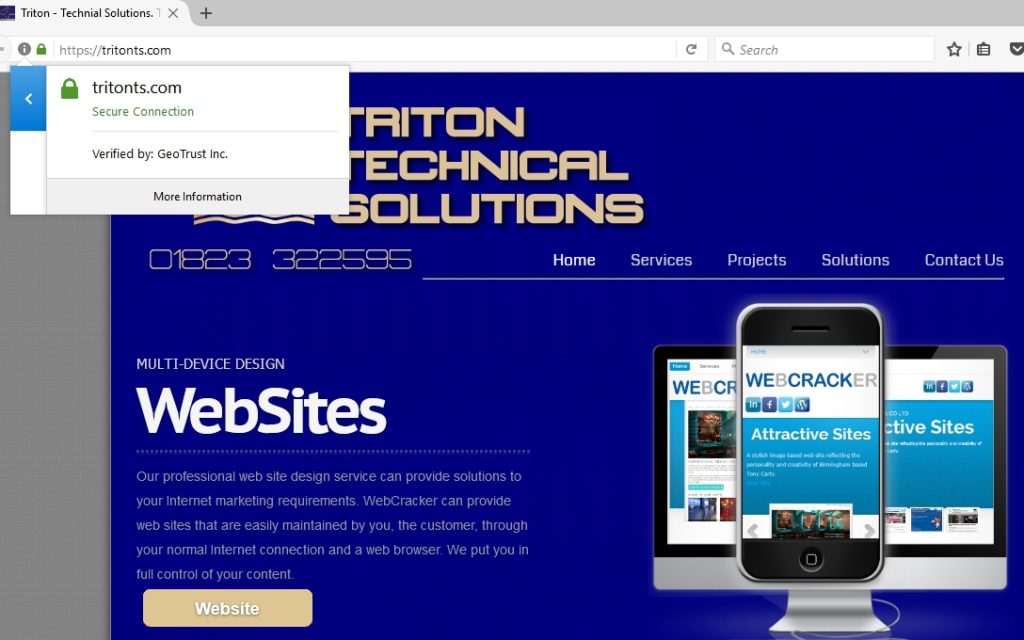
HTTPS connections, in contrast, are marked by a lock symbol next to the word “Secure.” Click for more information, and you’ll see that the site is classified as secure and “your information (for example, passwords and credit cards) is private when it is sent to this site.”

The perception that only ecommerce sites need SSL doesn’t reflect the true lack of security for HTTP connections. When you load a website over HTTP, someone else on the network can look at or modify the site before it gets to you, or intercept your mail form information en-route.

Information security has become high on the agenda and people feel the need to protect their personal data. Adding an additional security level will allow users to make an informed decision about which sites to trust and add more confidence to those with a padlock, whilst those which remain insecure, may well end up getting avoided by people browsing the web.

In future, Chrome will label all HTTP pages with a red triangle to draw further attention to the insecure nature of the connection. So, the recommendation is to protect your visitors and your site with an SSL certificate and migrate to HTTPS.

Cost effective home monitoring

Traditional CCTV systems are often bulky and difficult to set up due to the cabling and need for video recorders. Having some form of monitoring in the home is useful but often the expense outweighs the benefits. Triton has a budget alternative which not only is cost–effective but also can be used for a variety or requirements.

If you have fibre-optic broadband, instead of a wired camera system, you can opt for wireless network cameras. Basically an advanced web cam, network cameras have traditionally required complex configuration; however, the latest offering is a versatile monitoring solution for your home or small office. Unlike a traditional webcam, a network camera transmits high quality video images and audio for home and remote monitoring, even in complete darkness courtesy of the built-in Infrared LEDs. With associated software and apps, cameras can be accessed and managed simply via a PC or iPad/Android tablet; therefore, you can quickly and easily view your camera feed from anywhere with a wireless or 3G connection.

Triton offers a selection of cameras from D-Link, a very reputable networking company featuring:

Mains electricity power connection

This allows for uninterrupted continuous video coverage.

Wireless or wired connectivity 

Cameras include Wireless N technology for wider coverage across your home. Wireless N allows you to stream high-quality video to remote sites over the Internet.

Night vision

The cameras come with built-in infrared LEDs that allow for continuous monitoring even in complete darkness. The 5-metre illumination distance makes them suitable for monitoring whatever is important to you, whether it is your baby in the nursery or your office by night.

Detection Alerts
Sound and motion detection and email alerts make the cameras a truly comprehensive home monitoring system. A detection area can be set up on the camera’s user interface so emails can then be sent to you to notify you of any motion detected or a sound alert can be set up if used for baby monitoring.

Single camera packages start with the D-Link DCS-932L. For £60 inc VAT, a Triton technician will set your camera up in your home or office, configuring your tablet or PC to control the camera. More than one camera can be configured for area monitoring, with each additional camera configuration costing £45 inc VAT

Cameras can be upgraded or mixed and matched to include additional features…. Including single camera set up…

For £80 inc VAT not only does the DCS-933L connect wirelessly, the extender mode can extend the range of your existing wireless network. This eliminates wireless dead spots to give your home or office a more complete wireless coverage.  

For £115 inc VAT the  DCS-942L camera includes a MicroSD card slot and a pre-installed 16Gb MicroSD card to record audio and video directly onto the camera, without the need of a computer being switched on. You can setup the camera to record only when motion is detected, or continuously for up to 7 days via the camera’s intuitive web interface. Once 7 days have been exceeded and the MicroSD card is at capacity, older footage will be recorded over.

For £120.00 inc VAT the DCS-1520L offers sharp, responsive pan/tilt movement and digital zoom so you can quickly scan a wide area from a variety of angles, and 4x digital zoom lets you zoom in for more detail.

Finally, if HD quality is required, the D-Link DCS-2132L is the model to choose but bumps the cost up to £130.00

Up to 32 cameras can be configured for monitoring from a Windows computer, but initially, start with one or two, and build from there.

Retailing at Curry’s at £45.00, having a DCS-932L installed and configured for you at a price of £60.00 offers exceptional value for money. If you would like

a no-obligation demonstration of the camera and software, please feel free to contact me on 07977 915965 or email admin@tritonts.com. Alternatively, Triton offers a variety of technical solutions, if you have a computer-related problem or have another requirement, get in touch.

Please note: All prices are correct as of 17th May 2015 and may be subject to change. Products are subject to availability. Cameras will need a 13 amp mains power socket and quality of imagery will depend on the quality of the broadband connection.

I’ve Been Meaning To Back Up!

Probably one of the biggest issues I come across is people being aware that they have to back up their files but  ‘just haven’t got around to it’.  “My computer’s not working, tell me I haven’t lost everything” is all too common. Luckily most PC problems I come across are either Operating System issues where the PC just won’t boot, or in the case of a hardware failure it tends to be the motherboard, which means that the data is still available on the hard drive. It is then a simple case of removing the drive, slaving it to another machine and transferring all the information, or alternatively purchasing a ‘drive caddy’ and low and behold, a USB drive with all the files intact. Not so simple with a hard drive failure. You are then looking at specialist recovery, and that, does not come cheap.

Over the years I have utilised various methods for backing up my files. Prior to USB  memory sticks the most effective way was a ‘zip drive’ (which incidentally I still have. So, if you need data transferring from zip, I’m your man!).  Second hard drive in a tower, USB  memory, USB hard drives, flash readers and cards, NAS (Networked attached storage) all of which have their uses, but all of which have limitations. I currently have a ‘bricked’ NAS storage device. It’s the second time it has happened to me and there is no rhyme nor reason why it should fail. Previously I managed to re-cover the drive – but with complete loss of data, this time, no such luck. Fortunately it was my backup drive, but if I had been using that as a file server, the consequences would have been disastrous. As The router I use for broadband has a USB port, I have retained the idea of NAS storage, however now use a USB hard drive plugged into the router and shared on the network. Great system, and works really well, however like most houses, I do not have a Gigabyte wired network, I am using wireless.  The software I use to back up is Novasofts ‘Handybackup’ available from www.handybackup.net…. A snip at $39 and one of the best back up utilities I have come across, however if you are transferring large chunks of data, the time it takes to back up over the network can be an age. You can plug a USB drive directly into your laptop or PC. But you then have two issues. For that to be effective, you need to actually plug the drive in and enable the back up. How many times have I heard ‘the backup drive is in the bag but I haven’t done it for a while’. Also, if you have a workstation and keep the hard drive permanently plugged into your PC or laptop, you are covered for equipment failure, but what about theft? If someone takes your device and the drive at the same time, what would you do? That is pretty much the reason I maintained the NAS for such a long period of time. My backup storage was in a different location to the main files I wanted to protect.

So what is the solution?  When something goes wrong most people want to be back up and running ASAP. Personally, I  split the PC or laptop  into two areas. The operating system and file management. Most devices have only one hard drive, however Windows has a built in utility and there are several effective commercial options available for managing and your drive and creating partitions. My choice would always be to have the operating system on one partition on the drive – the ‘C’ Drive and have all files stored on a separate partition the ‘D’ Drive. There is a really simple reason for doing this. If the Operating System Corrupts and you need to put the machine back to a state where it was working again, you can try ‘System Restore’. Alternatively the most effective method is to have an image or a snapshot of the C Drive at a point it was working properly. If you operating system has failed, rather than having to do a clean install, or restore the machine back to factory settings, you restore the image and ‘hey presto’ you’re back up and running. Also, the beauty is, because your data was on a separate partition, nothing has been lost – win win!

So, how should you manage your PC or laptop? Have an image of the drive that stores your operating system, taken at a time when you are happy with the configuration and the software that has been installed – remember, it is not quite as draconian as restoring to factory settings, but you still go back to the point where you made the image and any subsequent software you have installed will not be available. Have all your data on a separate drive partition and using backup software make sure the files are backed up on a regular basis.

I can’t finish this post on backing up, without mentioning cloud storage. Not everyone’s cup of tea…. The thought of having your family pictures on a server in another part of the country, or another part of the world is not appealing to some people, however, if like me, you use multiple devices in various locations then, as far as I’m concerned it has to be the way to go.

Triton’s IT set up is such that we use dockable laptops, all configured in the same way. Two reasons: flexibility and security. We do not have hardware containing important information left unattended in an office and we can operate anywhere we want to.  Should the office burn down, work continues as normal. How can we do this? All company files are stored online and available through a shared virtual drive.  If I make a change to a file, it is changed ‘in the cloud’ and once the sync has taken place, is available to all machines connected to that cloud. And we are not just talking PC’s. I can access all my files through an iPad or smart phone (not that I would work on the files, but occasionally it is handy to have them to hand for reference).

In relation to what you use for online storage is down to you. The three main players are Google Drive, Microsoft OneDrive and DropBox. All give a certain amount of free storage and if you are canny, you could utilise all three to maximise the free space available. Personally this works for me,  however from a business perspective you are better choosing one supplier and if necessary paying for the extra space. Does this negate everything I said about backing up your files….. to a certain extent yes. However, I can’t help belt and bracing. My recommendation….. image your Operating System Drive, have a documents partition drive, store your important  documents in an online drive, but also maintain a separate back up which would action on a regular basis. You never know when you want to revert a file you changed yesterday back to a previous version.  If you have a backup from a week ago… job’s a good ‘un!