WordPress: Page Editor Upgrade

There are several editor options that you can integrate into WordPress to make designing your sites pages easy, My favourite has to be Page Builder by SiteOrigin. This plugin makes it easy to build responsive grid-based page content that adapts to mobile devices which means your page content is always displayed accurately.

It has a simple drag and drop interface and is backed up by a collection of widgets which means you shouldn’t have to modify any code.  Page Builder also uses WordPress’s built in widgets and with access to some impressive plugins. This has to be one of the easiest WordPress editors available.

Check out the web site here
WordPress: Clone Posts & Pages

Sometimes you can spend ages setting a page up and you realise you would like to create a new post, but keep all the work you have done in formatting a page in place. This plugin allows users to clone posts of any type, or copy them to new drafts for further editing.

It is extremely versatile:

In ‘Edit Posts’/’Edit Pages’, you can click on ‘Clone’ link below the post/page title: this will immediately create a copy and return to the list.

In ‘Edit Posts’/’Edit Pages’, you can select one or more items, then choose ‘Clone’ in the ‘Bulk Actions’ dropdown to copy them all at once.

In ‘Edit Posts’/’Edit Pages’, you can click on ‘New Draft’ link below the post/page title.

On the post edit screen, you can click on ‘Copy to a new draft’ above “Cancel”/”Move to trash” or in the admin bar.

While viewing a post as a logged in user, you can click on ‘Copy to a new draft’ in the admin bar.

You can check out the plugin here

Post Type Switcher

This plugin adds a simple post-type drop-down to the post editor interface, allowing you to reassign any post to a new post type. It allows you to switch post’s type while editing your post.

SUPPORTED TYPES

The plugin can convert nearly every combination of posts, pages, and even custom post types:

  • Page to Post
  • Post to Page
  • Post to Custom
  • Custom to Custom

BULK EDITING

With bulk editing  you can select all the posts in a certain type and convert them to a new type with one quick action.

BLOCK EDITOR

With block-editor (aka Gutenberg) support you can switch between post-types that use either the Block Editor and the Classic one, without losing any of your embedded content.

WordPress Admin Menu Editor

Customize the Admin Bar (WordPress Toolbar) Hide toolbar items, change their order with drag & drop, rename items, add new links, and more….

If you use a variety of plugins to manage your web site sometimes the location on the menu bar is not quite as convenient as it could be. You can make using WordPress easier to use by moving frequently used menu items to the top. You can also move menu items from one submenu to another, or to the main menu.

You can add your own links to the admin menu, make a custom menu’s  and it’s possible to create non-clickable items, which can be useful for things like section headers in complex admin menus. So, if you want a top-level link to “Add New Post” or to a specific plugin? You can do that. If you have an unruly plugin that puts its admin page in the wrong place? Move it to “Settings” instead.

This is probably one of the most useful plugin’s available and one of the best things about it is, you can simplify the menu system for your clients. If you can make things simple, then things work!

User Role Editor

User Role Editor WordPress plugin by Vladimir Garagulya allows you to change user roles and capabilities easy.

Just turn on check boxes of capabilities you wish to add to the selected role and click “Update” button to save your changes. It’s as simple as that.

Add new roles and customise its capabilities according to your needs, from scratch or as a copy of other existing roles.
An unnecessary self-made role can be deleted if there are no users whom such role is assigned and the default role assigned to every newly created user can also been changed.

Capabilities could be assigned on per user basis. Multiple roles could be assigned to a user simultaneously and Multi-site support is provided.

Check out the plugin site here.

NextGEN Gallery

Creating and Managing a Gallery

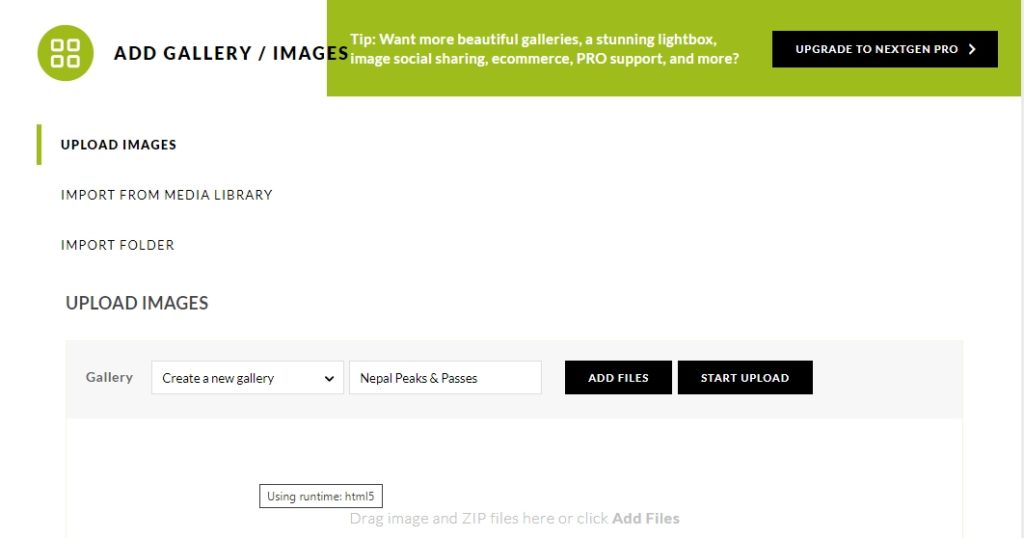
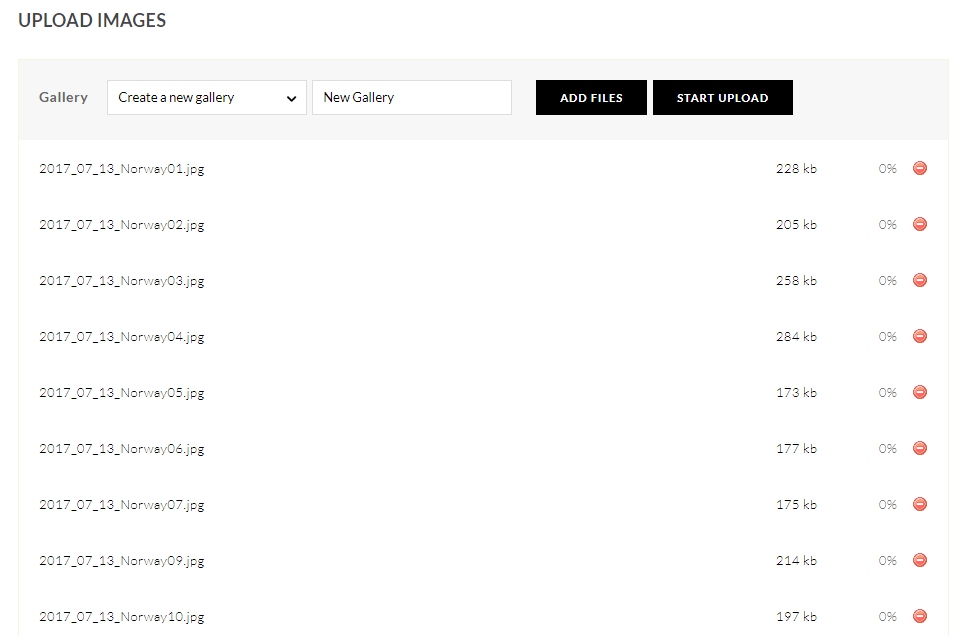
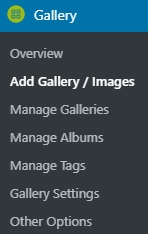
Log into WordPress and click on add / gallery images

This page opens

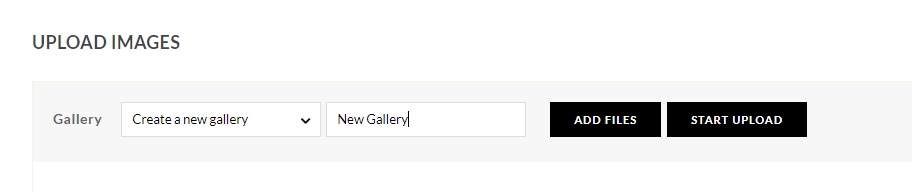
Type in the New Gallery name: ‘New Gallery’

And click ADD FILES

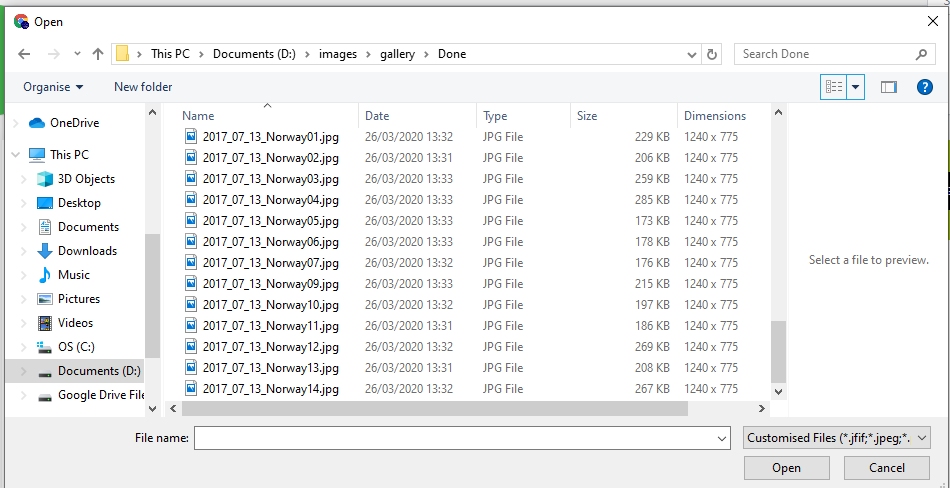
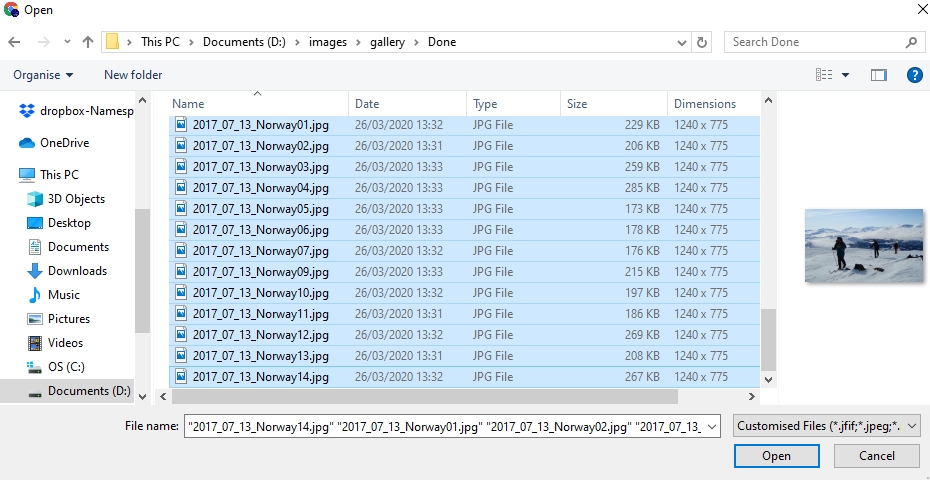
Multiple files can be selected by using CTRL and left click

Note files are numbered starting 01, the display order is based on file name.

Select ‘Open‘

Select START UPLOAD

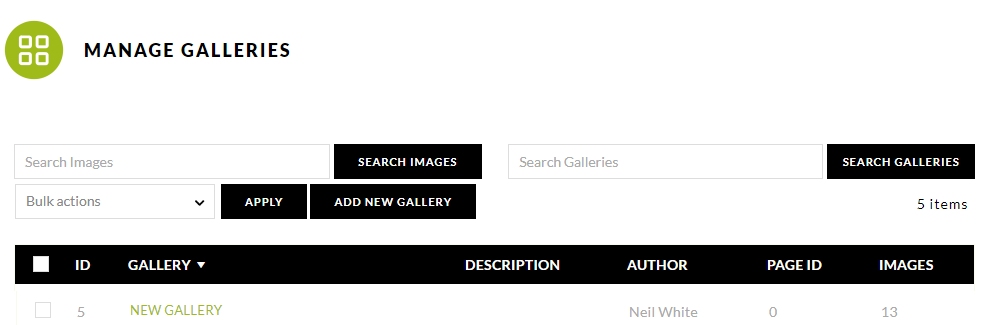
The files upload and you are redirected to the MANAGE GALLERIES Page

Now go to ‘pages’.

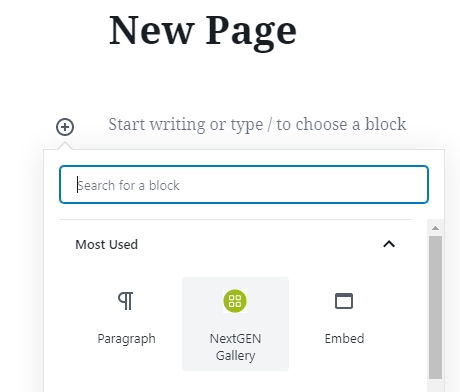
Create a New Page title that page and add a New Block

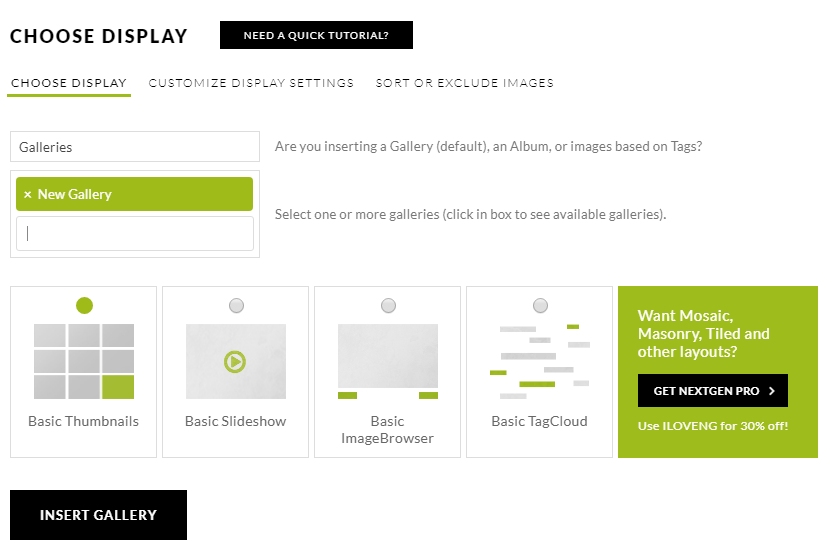
Select NextGen Gallery

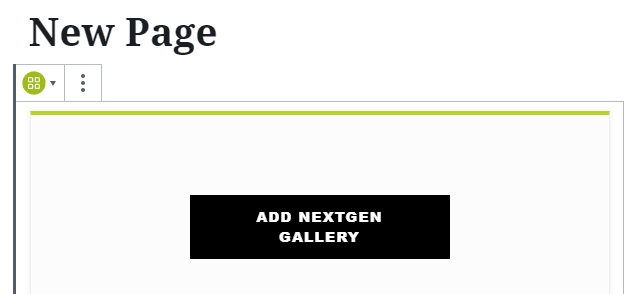
Select ADD NEXTGEN GALLERY

INSERT GALLERY – Publish the page and the job is done.

NOTE: Depending on theme, if you want a link to be displayed on your front page, you may need to:

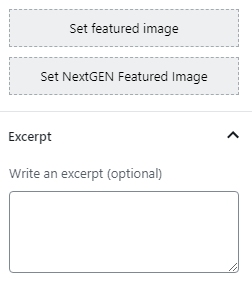
N.B. Set featured image requires a separate upload to Media Library / Set NextGEN Featured image allows you to choose one of your uploaded images.

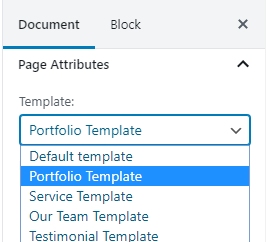
Set a featured image and write an excerpt and choose a Template.

Embedding Responsive Content

One of the issues you may have if you try and embed YouTube or other media into your web site is the view on a mobile phone does not work. Normally the embed code you are supplied has fixed dimensions for displaying on wider format screens.

embedresponsively.com helps build responsive embed codes for embedding rich third-party media into responsive web pages.

The code here is based on research and work by Theirry Koblentz, Anders Andersen and Niklaus Gerber.

The site is created and maintained by @jeffehobbs.

This is a really useful resource which saves time when creating content for blogs and web sites.

Manually Updating WordPress

Manual Update

For these instructions, it is assumed that your blog’s URL is http://example.com/.

Step 1: Replace WordPress files

  1. Get the latest zip (or tar.gz) file: https://en-gb.wordpress.org/download/
  2. Unpack the zip file that you downloaded.
  3. Deactivate plugins.
  4. Delete the old wp-includes and wp-admin directories on your web host (through FTP access).
  5. Using FTP upload the new wp-includes and wp-admin directories to your web host, in place of the previously deleted directories.
  6. Upload the individual files from the new wp-content folder to your existing wp-content folder, overwriting existing files. Do NOT delete your existing wp-content folder. Do NOT delete any files or folders in your existing wp-content directory (except for the one being overwritten by new files).
  7. Upload all new loose files from the root directory of the new version to your existing WordPress root directory.

NOTE – you should replace all the old WordPress files with the new ones in the wp-includes and wp-admin directories and sub-directories, and in the root directory (such as index.php, wp-login.php and so on). Don’t worry – your wp-config.php will be safe.

Be careful when you come to copying the wp-content directory. You should make sure that you only copy the files from inside this directory, rather than replacing your entire wp-content directory. This is where your themes and plugins live, so you will want to keep them. If you have customised the default or classic themes without renaming them, make sure not to overwrite those files, otherwise you will lose your changes. (Though you might want to compare them for new features or fixes..)

Lastly you should take a look at the wp-config-sample.php file, to see if any new settings have been introduced that you might want to add to your own wp-config.php.

Step 1.5: Remove .maintenance file

If you’re upgrading manually after a failed auto-upgrade, delete the file .maintenance from your WordPress directory using FTP. This will remove the “failed update” nag message.

Step 2: Update your installation

Visit your main WordPress admin page at /wp-admin. You may be asked to login again. If a database upgrade is necessary at this point, WordPress will detect it and give you a link to a URL like http://example.com/wordpress/wp-admin/upgrade.php. Follow that link and follow the instructions. This will update your database to be compatible with the latest code. You should do this as soon as possible after step 1.

Don’t forget to reactivate plugins!

Step 3: Clear the cache

If you have caching enabled, clear the cache at this point so the changes will go live immediately. Otherwise, visitors to your site will continue to see the old version until the cache updates.

Your WordPress installation is successfully updated.