Embedding Responsive Content

One of the issues you may have if you try and embed YouTube or other media into your web site is the view on a mobile phone does not work. Normally the embed code you are supplied has fixed dimensions for displaying on wider format screens.

embedresponsively.com helps build responsive embed codes for embedding rich third-party media into responsive web pages.

The code here is based on research and work by Theirry Koblentz, Anders Andersen and Niklaus Gerber.

The site is created and maintained by @jeffehobbs.

This is a really useful resource which saves time when creating content for blogs and web sites.
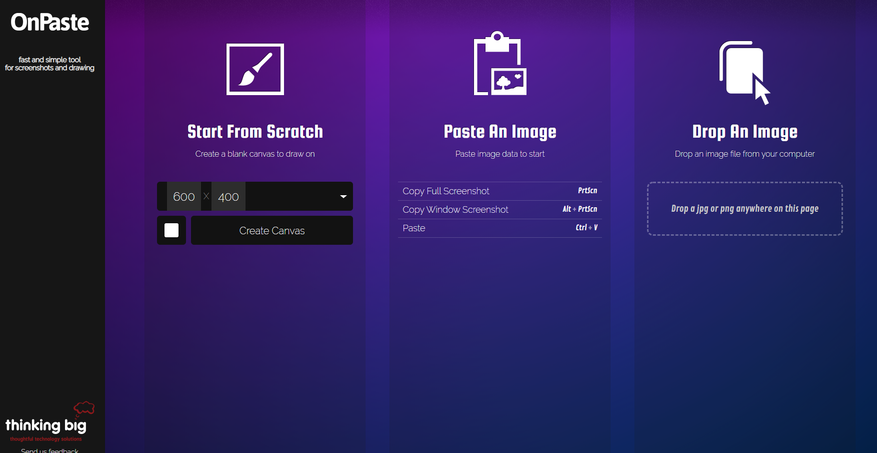
Online Tool for Screen Shots

Sometimes you want to take a screen shot on a PC which is not yours and does not have image editing software installed. This is where online utilities come in handy. OnPaste

allows you to create a canvas, copy a screen shot ‘Alt + Print Scrn’ and paste the screen shot’Ctrl + V’ onto the canvas. You can then crop the image and download to the PC you are working on.


Manually Updating WordPress

Manual Update

For these instructions, it is assumed that your blog’s URL is http://example.com/.

Step 1: Replace WordPress files

  1. Get the latest zip (or tar.gz) file: https://en-gb.wordpress.org/download/
  2. Unpack the zip file that you downloaded.
  3. Deactivate plugins.
  4. Delete the old wp-includes and wp-admin directories on your web host (through FTP access).
  5. Using FTP upload the new wp-includes and wp-admin directories to your web host, in place of the previously deleted directories.
  6. Upload the individual files from the new wp-content folder to your existing wp-content folder, overwriting existing files. Do NOT delete your existing wp-content folder. Do NOT delete any files or folders in your existing wp-content directory (except for the one being overwritten by new files).
  7. Upload all new loose files from the root directory of the new version to your existing WordPress root directory.

NOTE – you should replace all the old WordPress files with the new ones in the wp-includes and wp-admin directories and sub-directories, and in the root directory (such as index.php, wp-login.php and so on). Don’t worry – your wp-config.php will be safe.

Be careful when you come to copying the wp-content directory. You should make sure that you only copy the files from inside this directory, rather than replacing your entire wp-content directory. This is where your themes and plugins live, so you will want to keep them. If you have customised the default or classic themes without renaming them, make sure not to overwrite those files, otherwise you will lose your changes. (Though you might want to compare them for new features or fixes..)

Lastly you should take a look at the wp-config-sample.php file, to see if any new settings have been introduced that you might want to add to your own wp-config.php.

Step 1.5: Remove .maintenance file

If you’re upgrading manually after a failed auto-upgrade, delete the file .maintenance from your WordPress directory using FTP. This will remove the “failed update” nag message.

Step 2: Update your installation

Visit your main WordPress admin page at /wp-admin. You may be asked to login again. If a database upgrade is necessary at this point, WordPress will detect it and give you a link to a URL like http://example.com/wordpress/wp-admin/upgrade.php. Follow that link and follow the instructions. This will update your database to be compatible with the latest code. You should do this as soon as possible after step 1.

Don’t forget to reactivate plugins!

Step 3: Clear the cache

If you have caching enabled, clear the cache at this point so the changes will go live immediately. Otherwise, visitors to your site will continue to see the old version until the cache updates.

Your WordPress installation is successfully updated.

Lets Encrypt and Deleted Domains

You delete a domain from your Plesk control panel but you still get notifications from Lets Encrypt,

Could not issue/renew Let’s Encrypt certificates for Subscription

Please log in to Plesk and renew the certificates listed below manually.
Renewal of the following Let’s Encrypt certificates has failed:

* ‘Lets Encrypt domain.co.uk’ [already expired]

Basically the job is set up behind the scenes to auto-renew every three months.

To resolve: The System Administrator has to log into the root directory via SSH.

Navigate to:

/usr/local/psa/var/modules/letsencrypt/etc/live
/usr/local/psa/var/modules/letsencrypt/etc/archive

And delete the corresponding domain name.