NextGEN Gallery

Creating and Managing a Gallery

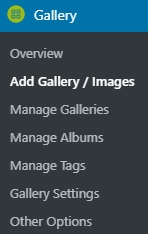
Log into WordPress and click on add / gallery images

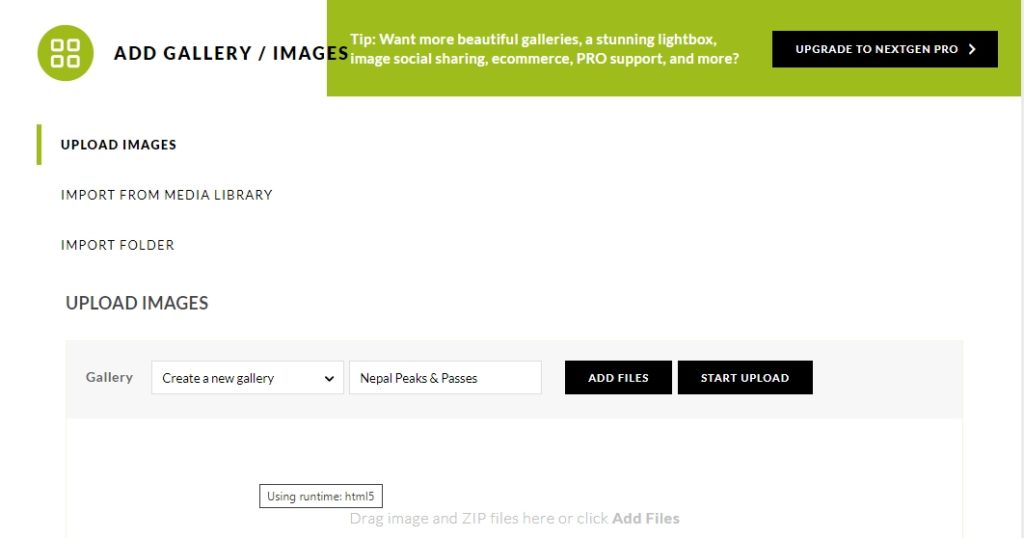
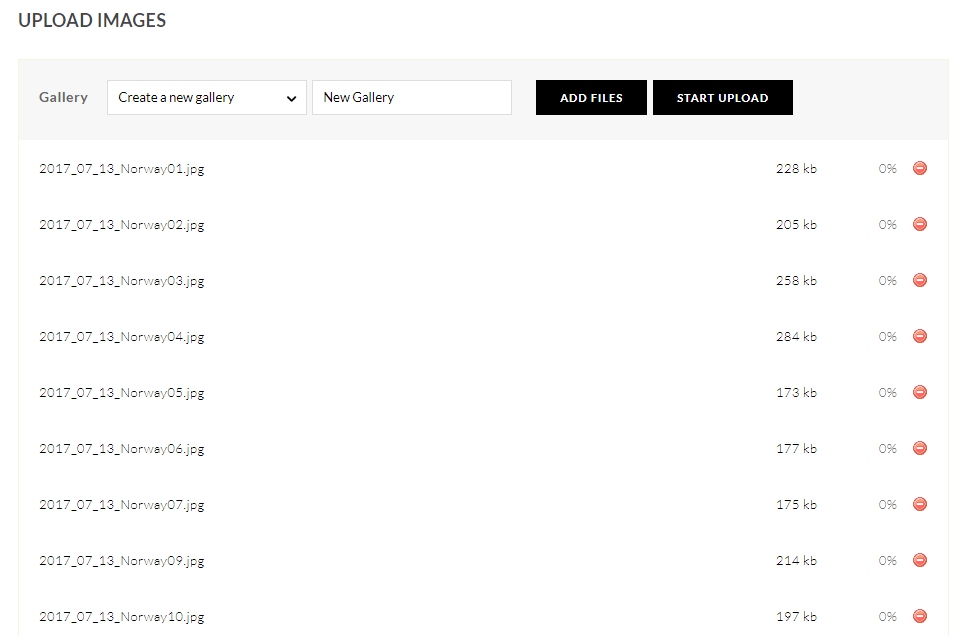
This page opens

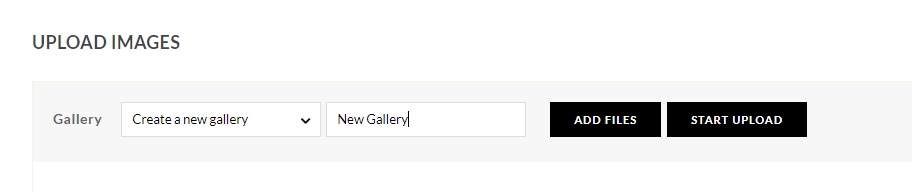
Type in the New Gallery name: ‘New Gallery’

And click ADD FILES

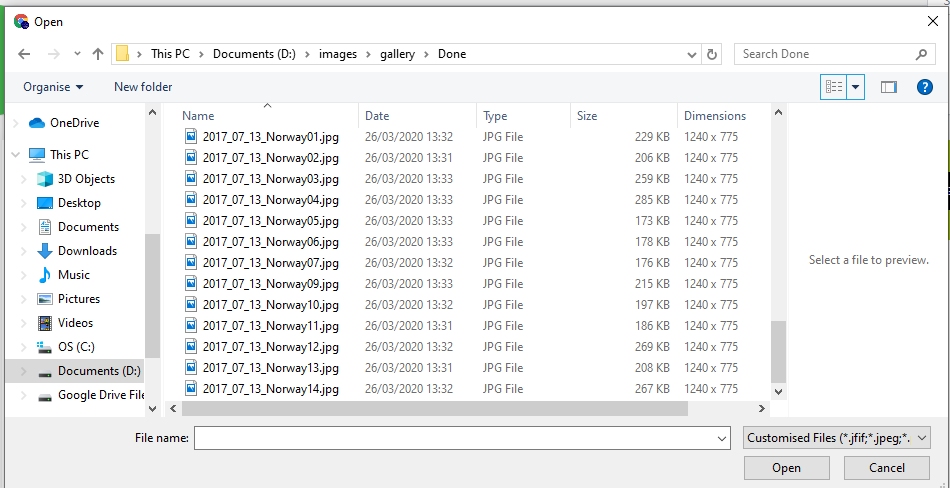
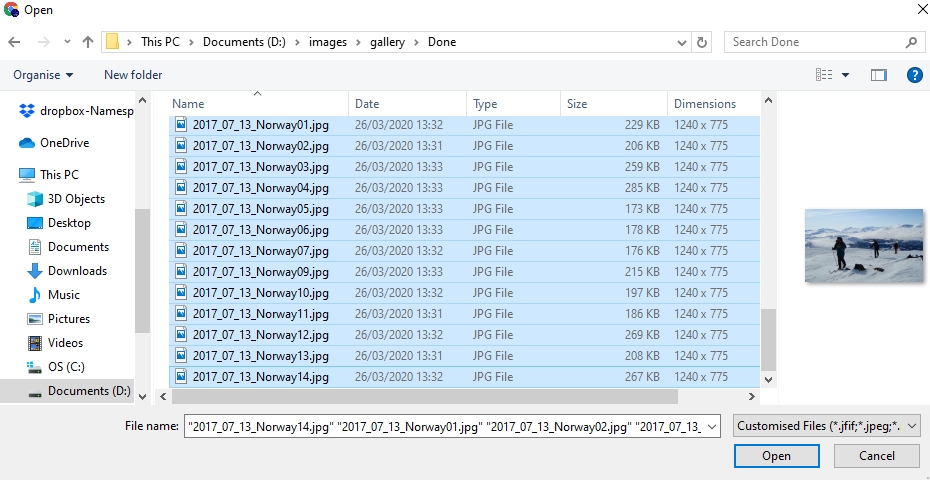
Multiple files can be selected by using CTRL and left click

Note files are numbered starting 01, the display order is based on file name.

Select ‘Open‘

Select START UPLOAD

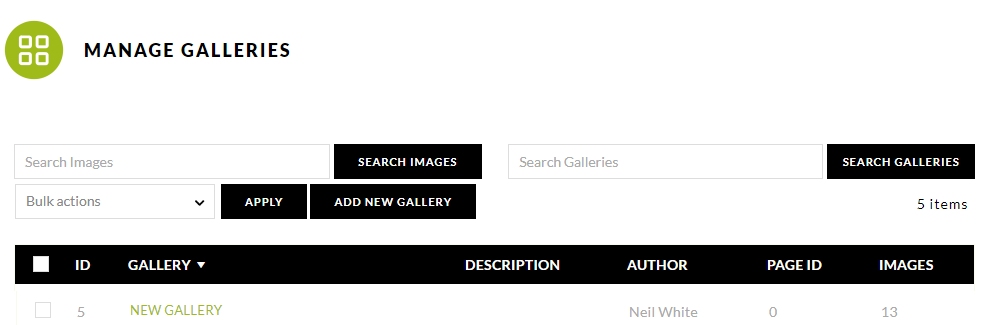
The files upload and you are redirected to the MANAGE GALLERIES Page

Now go to ‘pages’.

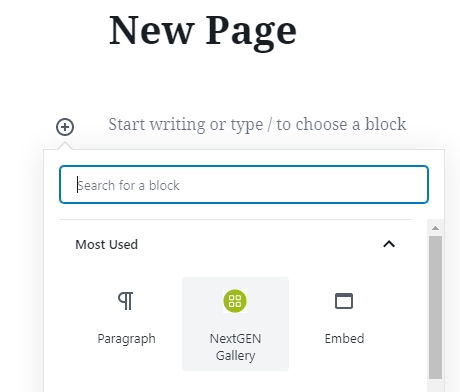
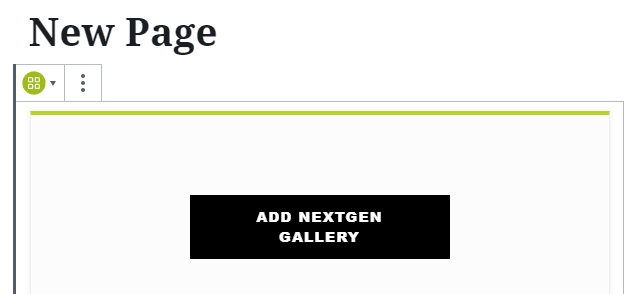
Create a New Page title that page and add a New Block

Select NextGen Gallery

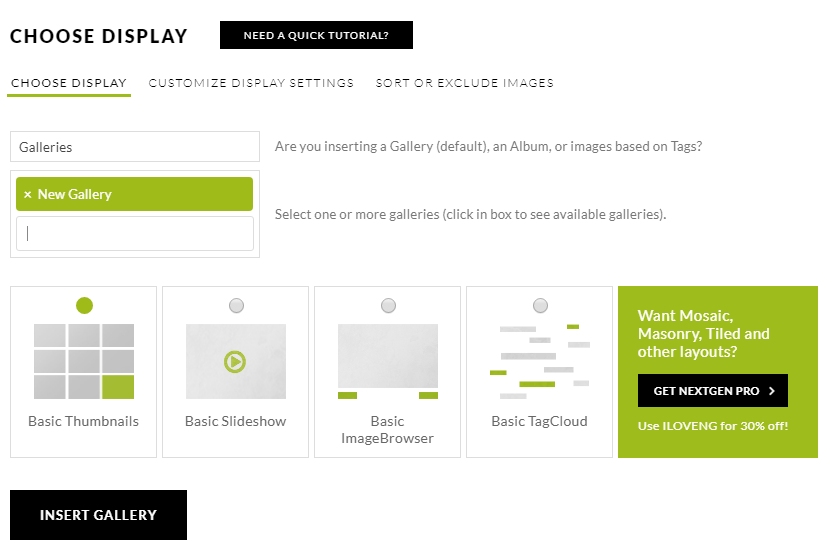
Select ADD NEXTGEN GALLERY

INSERT GALLERY – Publish the page and the job is done.

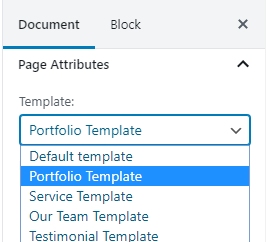
NOTE: Depending on theme, if you want a link to be displayed on your front page, you may need to:

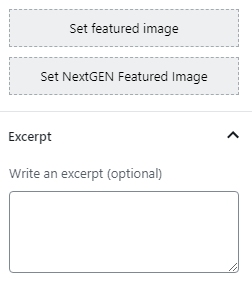
N.B. Set featured image requires a separate upload to Media Library / Set NextGEN Featured image allows you to choose one of your uploaded images.

Set a featured image and write an excerpt and choose a Template.

Embedding Responsive Content

One of the issues you may have if you try and embed YouTube or other media into your web site is the view on a mobile phone does not work. Normally the embed code you are supplied has fixed dimensions for displaying on wider format screens.

embedresponsively.com helps build responsive embed codes for embedding rich third-party media into responsive web pages.

The code here is based on research and work by Theirry Koblentz, Anders Andersen and Niklaus Gerber.

The site is created and maintained by @jeffehobbs.

This is a really useful resource which saves time when creating content for blogs and web sites.

Online Tool for Screen Shots

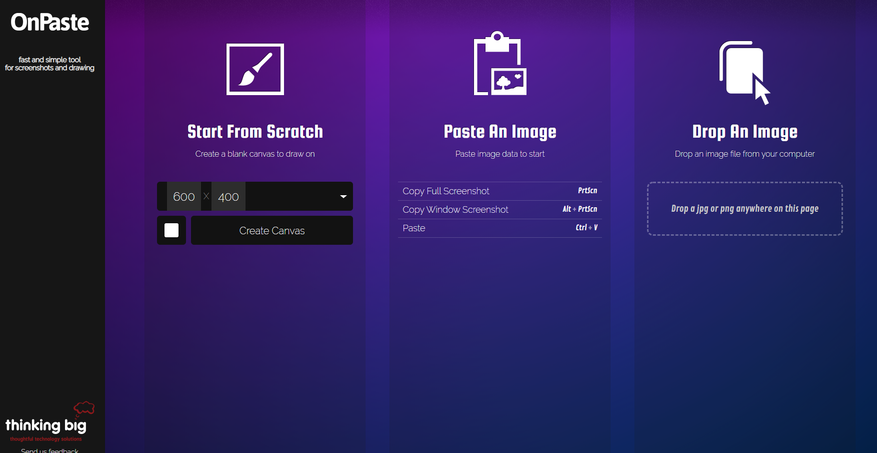
Sometimes you want to take a screen shot on a PC which is not yours and does not have image editing software installed. This is where online utilities come in handy. OnPaste

allows you to create a canvas, copy a screen shot ‘Alt + Print Scrn’ and paste the screen shot’Ctrl + V’ onto the canvas. You can then crop the image and download to the PC you are working on.


Manually Updating WordPress

Manual Update

For these instructions, it is assumed that your blog’s URL is http://example.com/.

Step 1: Replace WordPress files

  1. Get the latest zip (or tar.gz) file: https://en-gb.wordpress.org/download/
  2. Unpack the zip file that you downloaded.
  3. Deactivate plugins.
  4. Delete the old wp-includes and wp-admin directories on your web host (through FTP access).
  5. Using FTP upload the new wp-includes and wp-admin directories to your web host, in place of the previously deleted directories.
  6. Upload the individual files from the new wp-content folder to your existing wp-content folder, overwriting existing files. Do NOT delete your existing wp-content folder. Do NOT delete any files or folders in your existing wp-content directory (except for the one being overwritten by new files).
  7. Upload all new loose files from the root directory of the new version to your existing WordPress root directory.

NOTE – you should replace all the old WordPress files with the new ones in the wp-includes and wp-admin directories and sub-directories, and in the root directory (such as index.php, wp-login.php and so on). Don’t worry – your wp-config.php will be safe.

Be careful when you come to copying the wp-content directory. You should make sure that you only copy the files from inside this directory, rather than replacing your entire wp-content directory. This is where your themes and plugins live, so you will want to keep them. If you have customised the default or classic themes without renaming them, make sure not to overwrite those files, otherwise you will lose your changes. (Though you might want to compare them for new features or fixes..)

Lastly you should take a look at the wp-config-sample.php file, to see if any new settings have been introduced that you might want to add to your own wp-config.php.

Step 1.5: Remove .maintenance file

If you’re upgrading manually after a failed auto-upgrade, delete the file .maintenance from your WordPress directory using FTP. This will remove the “failed update” nag message.

Step 2: Update your installation

Visit your main WordPress admin page at /wp-admin. You may be asked to login again. If a database upgrade is necessary at this point, WordPress will detect it and give you a link to a URL like http://example.com/wordpress/wp-admin/upgrade.php. Follow that link and follow the instructions. This will update your database to be compatible with the latest code. You should do this as soon as possible after step 1.

Don’t forget to reactivate plugins!

Step 3: Clear the cache

If you have caching enabled, clear the cache at this point so the changes will go live immediately. Otherwise, visitors to your site will continue to see the old version until the cache updates.

Your WordPress installation is successfully updated.

Lets Encrypt and Deleted Domains

You delete a domain from your Plesk control panel but you still get notifications from Lets Encrypt,

Could not issue/renew Let’s Encrypt certificates for Subscription

Please log in to Plesk and renew the certificates listed below manually.
Renewal of the following Let’s Encrypt certificates has failed:

* ‘Lets Encrypt domain.co.uk’ [already expired]

Basically the job is set up behind the scenes to auto-renew every three months.

To resolve: The System Administrator has to log into the root directory via SSH.

Navigate to:

/usr/local/psa/var/modules/letsencrypt/etc/live
/usr/local/psa/var/modules/letsencrypt/etc/archive

And delete the corresponding domain name.

Change the value in a field to another value

You have an entry in a MySQL database that you want to change.
ie, you may want to re-reference an image folder or in my case, archive all the events on a sports site before the new season. To do this you need the following code:

update [table_name] set [field_name] =
replace([field_name],'[string_to_find]','[string_to_replace]');

Example:

UPDATE wp_posts SET post_type = REPLACE(post_type, 'sp_event', '2018-19');

Copy one column in a table to another

I wanted to copy one column which held postcode data and insert all that data into another column, however I only wanted the first four characters, so effectively providing a column which relates to postcode districts.

Create the new column with the new name. In my case postcode_districts. Then copy the postcode column to the postcode_district column with the following sql command in phpmyadmin:

UPDATE tablename SET postcode_district = postcode

All the data is transferred to the new column.

Then I just adjusted the column structure to reflect 4 characters and not the 10 that was previously there.

The result was as I wanted:


GDPR (General Data Protection Regulation)

What is GDPR?

The GDPR is an EU regulation governing the processing of personal data by companies and public authorities. The regulation has been in force since May 25, 2016 and must be implemented by May 25, 2018. If companies fail to comply, fines of up to 20 billion euros or 4% of the world‘s annual turnover are threatened. GDPR affects all companies that process personal data. This includes, for example, names, customer data, telephone numbers, e-mail addresses or other data with which people can be identified.

Data Privacy & Security

Using third party storage such as Dropbox, OneDrive or Google Drive means that  data is store off-premises on undetermined servers. That potentially exposes that data to a variety of unknown users and once data is on third-party servers, it can often stays there – deleting it from a user account does not delete it from the storage.

Something to think about

In 2012 Dropbox had a major data breach, containing encrypted passwords and details of over 68 million  users’ email addresses and passwords leaking on to the internet – around two-thirds of the firm’s customers. Article here

Solution – Store your data on a business grade secure UK based server with Triton Technical Solutions.

Where does Triton store your data?

Triton’s service provider is UKFast who has invested £22m in Manchester based  IL4 data centres to ensure the highest level of service available. With UKFast, your data will always be stored securely within the UK. And with 100% power availability and built-in redundancy for all critical components, you can be assured your mission critical applications will always be online.

UKFast is certified to ISO 27001 (Information Security Management) which verifies the robust security practices employed within their data centres and operations. The ISO 27001 standard provides peace of mind that UKFast maintains total integrity of your hosting solutions along with complete confidentiality and guaranteed network availability.

UKFast is also PCI DSS compliant (Payment Card Industry Data Security Standard) in our operational business processes. This means that all UKFast clients can be confident that payment card transactions processed by UKFast meet PCI requirements, protecting you from risk.

Can your current host or business data storage provider give this guarantee?

Why use Triton Technical Solutions?

EU-GDPR compliant

Because with Triton’s Private Cloud solution you know exactly where your data is stored and who has access to it.  It is important to know where your sensitive information is being stored and how it is being accessed. You can meet regulatory compliance with data storage on Triton Servers in our Manchester data center. With Public Cloud-based products the data may even be stored outside of the UK, which may put you at risk regarding regulatory requirements, data leakage, security vulnerabilities, compliance violations and lead to potential business damage.

Sync and Share Your Data, with Ease

The software we use is ownCloud, the most straightforward way to file sync and share data. You don’t need to worry about where or how to access your files. With ownCloud all your data is where ever you are; accessible on all devices, any time.

A Safe Home for All Your Data

ownCloud is hosted exclusively within your Triton hosting account so you can rest assured that your data is under your control. ownCloud is all about your privacy and works to protect your files. It ensures that access is controlled only by the one who should have control.

Encryption & Security

ownCloud is all about securing your data. Encrypt your data and make sure that no one, other than yourself, has access. With credential or master key based encryption, ownCloud adds an additional layer of security to your files.

End-to-end Encryption

The new end-to-end encryption, or E2EE, plugin completely encrypts your data and neither an administrator nor third parties who have access to the infrastructure can read the data. The new E2EE plugin is the safest and easiest way to send encrypted files between two or more people.

How much does a Triton Solution Cost?

We would host ownCloud on a dedicated domain or subdomain, for example https://storage.tritonts.com which would be secured by an SSL certificate.

If using a subdomain of your own web site, there is no ‘address fee’, and hosting is charged at our annual rate of £75 + VAT.

ownCloud installation and set up is a £150 + VAT one of set up fee and utilises the 5GB of storage within your hosting package.

Please note, For each additional 1GB of storage required, the cost is £1.00 + VAT per month.

Contact Us

If you are interested in finding out more….contact Triton: 01823 322 595 or Email admin@tritonts.com with GDPR in the subject field.